Blog
Your Organization’s Data Cannot Be Pasted Here: Causes and Simple Solutions

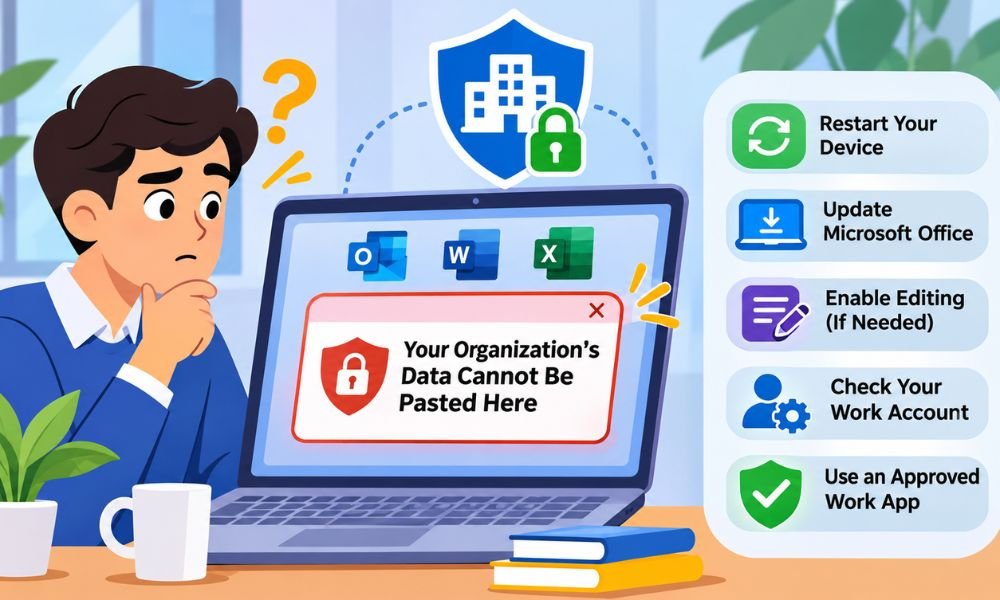
Have you ever copied some text from Outlook and tried to paste it into another app? Suddenly a message appears saying “Your Organization’s Data Cannot Be Pasted Here.” This can be annoying when you need to finish your work.
This error is common in Microsoft Office apps. It often happens when a company uses security rules to protect work data. Sometimes an old app or a small software problem can also stop copying and pasting.
The good news is that some causes are easy to check. In this guide for 2026 we will explain why this error appears and how to fix it on different devices. We will also show when you need help from your company.
What Does Your Organization’s Data Cannot Be Pasted Here Mean?
The message “Your Organization’s Data Cannot Be Pasted Here” means that your work data cannot be pasted into the place you selected. This often happens because your company has rules about where its information can go.
For example, you may copy text from your work Outlook account. Then you try to paste it into a personal notes app. Your company may block this action to keep its private information safe.
This does not always mean your phone or computer is broken. The app may be working fine. The company may simply want you to use an approved work app instead of a personal one.
Why Does Your Organization’s Data Cannot Be Pasted Here Appear?
There are several reasons why this error may appear. One common cause is Microsoft Intune. Companies use this tool to control how work data moves between apps. It helps keep private files and messages safe.
Another reason may be an old app or a temporary problem. For example, Outlook may stop working as expected after an update. Restarting the app or installing a newer version may help in such cases.
The error can also appear when you use the wrong account. You may have both a personal and work account in Word. If you try to paste protected work text into a personal file then the company may block it.
How to Fix Your Organization’s Data Cannot Be Pasted Here
The first thing to do is check where you are pasting the text. Make sure the destination app is approved by your company. If you are moving work data then try using another approved work app.
Next check your account. Open the app and see whether you are signed in with your work email. For example, if you copy text from work Outlook then make sure Word is using the right work account.
You can also close both apps and open them again. This may fix a small software problem. However, if your company has blocked the action on purpose then restarting the apps will not remove that rule.
Fix Your Organization’s Data Cannot Be Pasted Here on Windows
Windows 10 and Windows 11 users may see this error while using Outlook or other Office apps. Start by saving your work. Then close the affected apps and restart your computer. This can clear temporary problems.
Next check for Microsoft Office updates. Open Word or Excel and select File > Account > Update Options > Update Now if that option is available. Install the updates and open your apps again.
If the error continues then try another approved work document. Copy a short test sentence that has no private data. Paste it into the new file. If it works there then the first document may have an editing or access problem.
Continue reading: Benson Boone Net Worth: How Rich Is the Young Singer Today?
Your Organization’s Data Cannot Be Pasted Here in Outlook
Outlook is one of the apps where users may see this warning. Imagine you receive an important work email. You copy a few lines and try to paste them into another app. Instead of the text you see an error.
This may happen because your company does not allow work emails to be copied into personal apps. Check whether the destination uses your work account. You can also try pasting the text into an approved work document.
If the problem continues then ask your IT team for help. Tell them which app you copied from and where you tried to paste. They can check whether company rules are blocking the action.
Fix Your Organization’s Data Cannot Be Pasted Here in Word and Excel
Microsoft Word and Excel are common apps for office work. Sometimes you may copy text from Outlook but cannot paste it into a Word file or Excel sheet. This can happen because of company security rules or file settings.
First check whether the file allows editing. Some files open in read-only mode. If you see a yellow Protected View bar then click Enable Editing only if you trust the file. This lets you make changes to that document.
You can also try another approved work file. Open a document from your company’s OneDrive or SharePoint account. Then try pasting a short test sentence. If it works then the first file may have a problem. If it still fails then ask your IT team to check the rules.
Your Organization’s Data Cannot Be Pasted Here on Android
Android users may also see the message “Your Organization’s Data Cannot Be Pasted Here” while copying text between apps. This often happens when a work account has security rules. These rules can apply even when you use your own phone.
First check where you are trying to paste the text. If you copied it from work Outlook then try pasting it into an approved work app. Make sure both apps use the correct work account. This may solve the problem.
Sometimes the warning appears in your Android keyboard. The keyboard may not be able to read protected work text. Try holding your finger inside the approved app and selecting Paste. You can also update your work apps. Keep Company Portal updated if your company requires it.
Fix Your Organization’s Data Cannot Be Pasted Here on iPhone and Mac
iPhone and Mac users can also face copy-and-paste problems. On an iPhone the error may appear when you move text from a work app into a personal app. Your company may block this action to protect private data.
Start by checking your work account. Make sure the destination app is approved by your company. Then update the affected apps and open them again. If your iPhone asks for paste permission then check the message carefully. This permission does not remove company security rules.
On a Mac you should also check whether the file allows editing. Try using another approved work document. If the error continues then tell your IT team which apps and accounts you used. They can help find the real cause.
How Microsoft Intune Controls Copy and Paste
Microsoft Intune is a tool that helps companies protect their work data. It can control how information moves between approved work apps and personal apps. This helps stop private company details from reaching the wrong place.
For example, a company may allow workers to copy text from Outlook into Word. However, it may block copying the same text into a personal messaging app. This is why one paste action may work while another fails.
Only approved company admins can change these rules. They can review the app protection settings in Microsoft Intune. However, allowing copying into every app may put company data at risk. It is better to allow only the transfers needed for work.
Why Your Organization’s Data Cannot Be Pasted Here Shows a Character Limit
Sometimes the message “Your Organization’s Data Cannot Be Pasted Here” includes a character limit. This means your company may allow only a small amount of text to be copied into certain apps. The limit depends on company settings.
For example, your company may allow 100 characters to be pasted into another app. A short sentence may work without any problem. However, a long email may be blocked because it goes beyond the allowed limit.
If you see this warning then check the number shown in the message. Do not try to avoid the rule by copying the text in small parts. Instead ask your IT team for an approved way to share the information.
What to Do If Your Organization’s Data Cannot Be Pasted Here Still Appears
If you have tried the basic fixes and the error still appears then check whether it happens in every app. Try copying a short sentence with no private details between two approved work apps. This can help you find where the problem starts.
Next make sure you are signed in with the right work account. Check that your apps are updated and your internet connection works. If your company recently changed its security rules then the new settings may take time to reach your device.
If nothing works then contact your IT support team. Tell them your device type and the apps you used. Share the full error message and explain what you tried. This will help them find the cause without wasting time.
Continue reading: Yeat Net Worth: How the Young Rapper Made His Millions
Conclusion
The “Your Organization’s Data Cannot Be Pasted Here” error can be annoying when you are trying to finish your work. However, it often appears for a good reason. Companies use these rules to keep private information safe.
Start with simple checks. Make sure you are using the right work account and an approved app. You can also restart your device and update Microsoft Office. These steps may help when the problem comes from an app or file.
If the error is caused by company security rules then your IT team may need to help. Avoid turning off security settings without approval. With the right checks and support you can find a safe way to move your work data.
(FAQs)
What Does “Your Organization’s Data Cannot Be Pasted Here” Mean?
This error means your company may be blocking you from pasting work data into another app. It often happens because of Microsoft Intune security rules. These rules help keep private company information safe from unwanted sharing.
How Do I Fix Your Organization’s Data Cannot Be Pasted Here Error?
First check that you are using an approved work app and the right account. Then restart the app and check for updates. If your company blocks the action then you may need help from your IT team.
Why Does This Error Appear in Microsoft Outlook?
Outlook may block copying work emails into personal apps because of company security rules. Try pasting into an approved work document instead. Make sure both apps use your work account. If the problem continues then contact IT support.
Can I Fix This Error on Windows 11?
Yes. You can restart your computer and update Microsoft Office. You should also check the destination app and work account. These steps may fix software problems but cannot remove a company rule that blocks copying.
Why Does Your Organization’s Data Cannot Be Pasted Here Appear on Android?
This error often appears when your work account has data protection rules. Sometimes the Android keyboard shows the warning even when pasting is allowed. Try using the Paste option inside an approved work app to check.
How Can I Fix This Error on My iPhone?
Check that you are using the right work account and an approved app. Update Outlook and other work apps if needed. If your company blocks the transfer then only an approved policy change can allow it.
What Is Microsoft Intune and Why Does It Block Copying?
Microsoft Intune helps companies manage work apps and protect private data. It can stop workers from copying company information into personal apps. This helps keep work files and messages from being shared in places the company has not approved.
Why Can I Paste Only a Few Characters?
Your company may set a limit on how much work text you can paste into certain apps. Short text may work while longer text fails. The allowed number of characters depends on your company’s security settings.
Does Restarting My Computer Fix This Error?
Restarting your computer may help if the problem comes from a temporary software issue. However, it will not remove Microsoft Intune restrictions. If your company blocks the transfer then you must use an approved app or ask IT for help.
Can I Remove the Copy-and-Paste Restriction Without IT Support?
You can fix some app and account problems yourself. However, you usually cannot change company security rules without admin access. If your work needs a blocked transfer then ask your IT team for an approved solution.
Continue reading: Sofia Carson Net Worth, How Acting and Music Made Her Rich

SEO Content Writing Tips: A Complete Guide to Better Rankings and Engagement

How to Build a Diamond Wardrobe That Survives Every Style Phase

How Daily Life Changes Shape the Value of an Injury Claim in Colorado

How to Recognize and Report Healthcare Fraud

Turn Your Creative Ideas Into Products With a Desktop Laser Engraver

Jeremy Renner Net Worth, Salary, Marvel Earnings, and Real Estate Wealth

Peter Facinelli Net Worth, His Twilight Success, Career, and Wealth

Nara Smith Net Worth, How Modeling and TikTok Made Her Rich

Jimmy O. Yang Net Worth, His Rise From Struggling Comedian to Famous Actor

Barbara Avery: Where Is James Avery’s Wife Now?

How to Make Kofta Kebabs at Home Without Overthinking It

Ethan Klein Net Worth: YouTube H3 Podcast and His Wealth

Oleksandra Zelenska: Who Is Volodymyr Zelensky’s Daughter?

Who Is Angel Iris Murphy Brown? All About Mel B’s Child

Rebecca Liddicoat: What Happened to RG3’s First Wife After Divorce?

Kai Dugan: Everything to Know About Jennifer Connelly’s Son

Beyond the Interior: Home Improvements That Transform Your Entire Property

Nicole Aniston Net Worth: Career, Income, and Wealth Explained

Vivian Jenna Wilson Net Worth: How Elon Musk’s Daughter Makes Her Own Money

Lex Fridman Net Worth: Salary, Podcast and YouTube Money
SEO Content Writing Tips: A Complete Guide to Better Rankings and Engagement
How to Build a Diamond Wardrobe That Survives Every Style Phase
How Daily Life Changes Shape the Value of an Injury Claim in Colorado
How to Recognize and Report Healthcare Fraud
Turn Your Creative Ideas Into Products With a Desktop Laser Engraver
Jeremy Renner Net Worth, Salary, Marvel Earnings, and Real Estate Wealth
Peter Facinelli Net Worth, His Twilight Success, Career, and Wealth
Nara Smith Net Worth, How Modeling and TikTok Made Her Rich
Jimmy O. Yang Net Worth, His Rise From Struggling Comedian to Famous Actor