
Technology
How to Maintain Your PC for Better Everyday Performance and Gaming

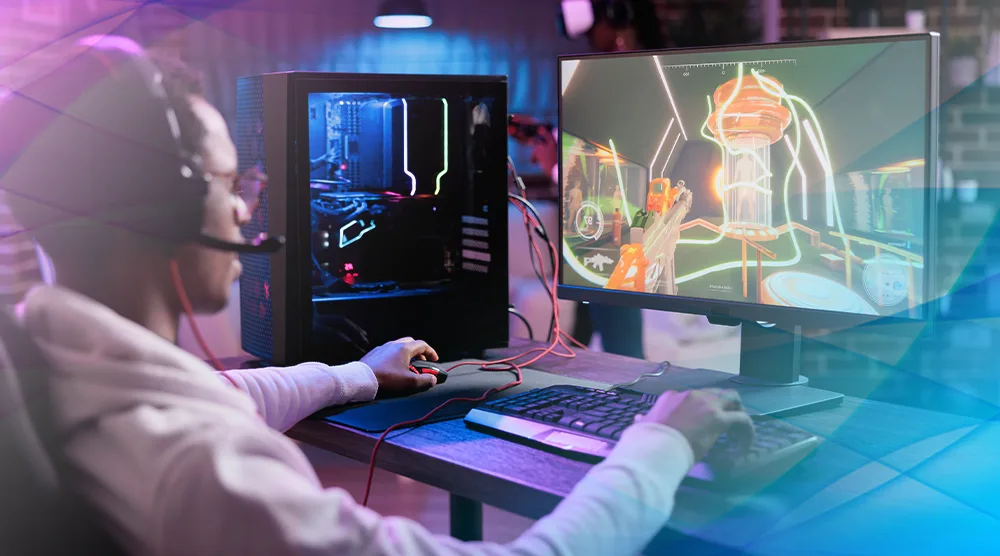
A computer is expected to handle many different tasks throughout the day. You might use it for browsing, office work, online meetings, entertainment, or gaming. However, as time passes, even a capable PC can begin to feel slower. Applications may take longer to open, games may experience inconsistent frame rates, and available storage can gradually decrease.
These problems do not always mean that a computer needs new hardware. Sometimes, unnecessary background applications, accumulated temporary files, outdated software, or an unbalanced hardware configuration can affect its performance.
A practical maintenance routine can help users understand what is happening inside their computers and make better decisions about improvements. From cleaning unnecessary files to checking component compatibility and estimating gaming performance, a few useful steps can make PC management more straightforward.
1. Understand What Is Affecting Your PC’s Performance
Before changing settings or purchasing new components, it is important to identify the source of a performance problem.
A slow computer can have several possible causes. Limited memory may affect multitasking, an older storage drive may increase loading times, and unnecessary startup applications can make Windows take longer to become ready. For gamers, the processor or graphics card may also struggle to keep up with the demands of a particular title.
Windows Task Manager is a useful starting point. Open it by pressing Ctrl + Shift + Esc, then review the CPU, Memory, Disk, and GPU sections. These indicators can help you identify applications or processes consuming significant system resources.
It is also worth checking available storage space and reviewing whether your computer has pending operating system or driver updates.
The important thing is to investigate before making changes. Closing a resource-intensive application may solve a temporary problem, while persistent performance issues may require a closer look at hardware or software.
2. Keep Unnecessary Files Under Control
Storage management is an important part of routine computer maintenance. Windows and installed applications create temporary files, caches, logs, and other data during normal use. Some of these files are useful, but others may remain after they are no longer needed.
When storage becomes crowded, managing files and installing updates can become less convenient. Keeping sufficient free space also helps avoid problems when applications need room for temporary operations.
A PC cleaner can help users identify certain types of unnecessary files and review available cleanup options. Depending on the software, additional features may help manage startup applications, browser data, or system resources.
Advanced SystemCare is one example of a Windows maintenance utility that offers cleanup and optimization features. Users can explore its available options to understand which tasks are suitable for their systems.
Windows also includes built-in storage management features. Storage Sense and Disk Cleanup can help identify temporary files and other items that may be removed.
Regardless of the method, review the selected items before confirming a cleanup. Personal documents, downloaded files, and other important data should never be removed simply to create more space.
3. Check Whether Your Hardware Is Properly Balanced
A computer’s performance depends on how its components work together. Having a powerful graphics card does not automatically guarantee excellent gaming performance if the processor cannot keep up with the workload.
This situation is commonly described as a hardware bottleneck.
For example, a demanding game may require substantial processing power from both the CPU and GPU. If one component consistently limits the other, the system may not deliver the performance a user expects.
A bottleneck calculator can provide an estimate of how well selected hardware components may work together. Such tools are particularly useful when planning a new PC build or considering a processor or graphics card upgrade.
IObit’s online calculator allows users to select hardware specifications and other configuration details to receive a performance-balance estimate.
However, a calculator should be treated as a planning aid rather than a final diagnosis. Actual performance depends on several variables, including the game, resolution, graphics settings, memory, cooling, drivers, and background applications.
For a more complete understanding, compare calculator results with real-world benchmarks and reviews of the hardware you are considering.
4. Estimate Gaming Performance Before Upgrading
Another common question among PC users is whether their current system can run a particular game comfortably.
Game requirements provide a useful starting point, but they do not always explain the performance a specific hardware combination will deliver. Two computers that meet the same minimum requirements can produce different results depending on their processors, graphics cards, memory, and settings.
An FPS calculator can help estimate how a selected CPU and GPU combination may perform in supported games. Users can choose hardware, a game, and display settings to get an approximate idea of expected frame rates.
This can be useful when deciding whether an upgrade is necessary. For instance, someone considering a new graphics card can compare possible hardware combinations before spending money.
It is important to remember that estimated FPS is not a guarantee of actual in-game performance. Real results may change with software updates, background activity, temperatures, driver versions, and the specific area or scene being played.
If you already own the computer, testing performance in the actual game provides more useful information about how your system behaves under real conditions.
5. Manage Startup Applications
Many programs automatically launch when Windows starts. Some need to do this to provide essential services, but others may not need to run immediately.
Having too many startup applications can increase boot time and consume memory or processing resources in the background.
To review them, open Task Manager and select Startup apps. Check which applications have a high startup impact and consider disabling automatic startup for programs you do not need immediately.
For example, a game launcher does not necessarily need to open every time you switch on your computer if you only use it occasionally.
Be careful not to disable security software, important hardware utilities, or unfamiliar system components without understanding their purpose. The goal is to reduce unnecessary activity while keeping essential functions available.
6. Keep Drivers and Software Updated
Drivers help Windows communicate with hardware components such as graphics cards, sound devices, network adapters, and printers.
Outdated or incompatible drivers can sometimes cause performance problems, errors, or hardware-related issues. Installing appropriate updates may improve compatibility and resolve known problems.
For important driver updates, use Windows Update or the official website of the relevant hardware manufacturer. Check that the driver matches your specific device and operating system.
The same principle applies to everyday applications. Updates can include security improvements, bug fixes, and compatibility changes.
There is no need to install every optional update without considering its purpose. Focus on relevant updates and create a restore point before making significant system changes.
7. Build a Simple PC Maintenance Routine
Computer maintenance becomes easier when it is part of a regular routine instead of something users only consider after a problem appears.
A practical schedule might include:
- Weekly: Check for important updates and notice any unusual changes in system behavior.
- Monthly: Review available storage, temporary files, and startup applications.
- Every few months: Remove applications you no longer use and review your installed software.
- Before upgrading hardware: Check compatibility, compare benchmarks, and estimate expected performance.
- When gaming problems occur: Monitor CPU and GPU usage, check temperatures, and compare actual FPS across similar conditions.
These tasks do not require constant attention. A few minutes of occasional review can help users understand their systems and avoid unnecessary changes.
8. Know When Maintenance Is Not Enough
Software cleanup and optimization can help address certain issues, but they cannot fix every hardware limitation.
For example, an older processor may struggle with a demanding new game even when the system is clean. Similarly, a computer with insufficient memory may continue experiencing slowdowns during heavy multitasking.
Overheating can also reduce performance because hardware may lower its operating speed to manage temperatures. If a PC frequently becomes unusually hot or shuts down unexpectedly, it may need professional inspection.
Before buying replacement components, identify the actual limitation. Check compatibility, consider your typical workload, and compare the expected improvement with the cost.
Sometimes, adjusting application settings or improving system maintenance is enough. In other cases, a hardware upgrade may be the more appropriate long-term solution.
Final Thoughts
A well-maintained PC is easier to use, troubleshoot, and upgrade. Managing unnecessary files, reviewing startup applications, keeping software updated, and understanding hardware compatibility are all useful habits for everyday computer users.
For gamers, estimating component balance and expected frame rates can also make hardware decisions more informed. Tools such as PC cleaners, bottleneck calculators, and FPS calculators can support this process, provided their results are understood as guidance rather than guaranteed outcomes.
Ultimately, better PC performance comes from identifying the real cause of a problem and choosing an appropriate solution. With a consistent maintenance routine and a little knowledge of how computer components work together, users can make more confident decisions about keeping their systems running smoothly.

How to Maintain Your PC for Better Everyday Performance and Gaming

The Growing Role of SEBI CSCRF in Financial Data Protection

How Employer Of Record Services Help Startups Expand Into New Markets With Lower Operational Risk

What Most Homeowners Miss When Planning a Roof Replacement in Sacramento

Smarter Lawn Feeding and Seeding: How You Get Better Results With the Right Spreader

A Home That Lasts: Smarter Choices for the Next Ten Years

Caroline Fentress: Everything About Chris O’Donnell’s Wife

A Season-by-Season Plumbing Guide for New York Homes

SypherPK Net Worth: Inside His YouTube and Gaming Fortune

Steve-O Net Worth: How Much Money Does the Jackass Star Have?

Buying Property Through Your Super? Run an SMSF Loan Calculator Before You Call a Broker

How to Make Kofta Kebabs at Home Without Overthinking It

Eractoll: What Is It and Why Did Enterprise Charge You?

NF Net Worth: How the Rapper Turned Pain Into Millions

Press Release Distribution for Startups: A Practical Guide to Your First Announcement

Michele Morrone Net Worth: His Salary, Earnings, and Rich Life

Innovations in Floristry: BOPP Matte Film as the Go-To Material for Modern Flower Packaging

Naomi Burton-Crews: The Heartwarming Story of Terry Crews’ Eldest Child

How Interactive Step-by-Step Guides Make Tech Easier to Learn

Inside the Obsession With Chrome Hearts and CDG
How to Maintain Your PC for Better Everyday Performance and Gaming
The Growing Role of SEBI CSCRF in Financial Data Protection
How Employer Of Record Services Help Startups Expand Into New Markets With Lower Operational Risk
What Most Homeowners Miss When Planning a Roof Replacement in Sacramento
Smarter Lawn Feeding and Seeding: How You Get Better Results With the Right Spreader
A Home That Lasts: Smarter Choices for the Next Ten Years
Caroline Fentress: Everything About Chris O’Donnell’s Wife
A Season-by-Season Plumbing Guide for New York Homes
SypherPK Net Worth: Inside His YouTube and Gaming Fortune
Steve-O Net Worth: How Much Money Does the Jackass Star Have?
-

 News2 months ago
Who Is Gigi Yallouz? Meet Owain Yeoman’s Wife and Jewelry Designer
-

 News2 months ago
Who Is Tove Torvalds? All About Linus Torvalds’ Wife
-

 News2 months ago
Rajesh Nihalani: What We Know About Archie Panjabi’s Husband
-

 News3 months ago
Stephan Farmiga: Everything to Know About Vera Farmiga’s Brother