
Technology
Protecting Your Online Privacy: A Practical Guide for Windows Users

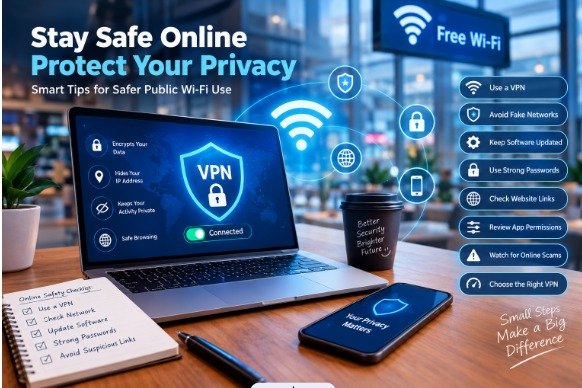
Visiting websites, logging into accounts, installing software, or connecting to public Wi-Fi all carry privacy risks. These routine online actions raise a critical question: how much control do we truly hold over our personal data?
For Windows users, online privacy protection extends far beyond simply installing security software.
1. Start With Safer WiFi Habits
Public internet access is convenient, but not all connections deserve the same level of trust. WiFi at cafes, hotels, schools, and airports operates differently from your private home network.
This does not mean you must avoid public WiFi entirely. Instead, recognize its risks and choose what you do online accordingly.
2. Understand Where a VPN Fits Into Your Privacy Plan
A Virtual Private Network (VPN) creates an encrypted tunnel between your Windows device and a remote VPN server, shielding your web traffic from local network surveillance.
If you are looking for reliable VPN software for Windows, iTop VPN is a perfect option.
Visit to learn more about its Windows offering.
Always verify compatibility with your Windows version and confirm its features match your daily browsing needs.
Keep in mind that a VPN will not make every online activity invulnerable. Treat iTop VPN as one layer of protection within a broader privacy routine, rather than a replacement for other safety precautions.
3. What to Consider Before Choosing a Free VPN
Students and budget-conscious users may find paid VPN subscriptions unaffordable, making a free VPN an appealing option. However, zero subscription cost should never be your only deciding factor.
You can start your research by checking out iTop VPN’s free tier at
Free VPN services differ widely in data caps, connection speeds, server coverage, and privacy policies. Some free VPN apps collect unexpected user data.
Take time to review: What data does it collect? Does it clearly state whether connection logs are stored?
4. Give Your Browser a Privacy CheckUp
Browser convenience features are helpful, but privacy settings are not one-size-fits-all. A few minutes of review lets you decide what data stays saved on your PC.
Audit your browsing history, cookies, saved passwords, and site permissions. Clear outdated data and block third-party cookies where your browser supports it. Revisit location, camera, and microphone permissions, especially for websites you rarely visit.
These steps cannot fully stop internet providers, employers, or network administrators from seeing parts of your online activity.
5. Treat Software Maintenance as Online Safety
Outdated software often contains known security vulnerabilities. Updating Windows should be regular maintenance, not a last-minute fix when trouble appears.
Uninstall programs you no longer use, especially if they request sensitive permissions or retain ongoing access to system resources.
Routine maintenance cannot block every cyber incident, but it lowers risks from known vulnerabilities and forgotten apps.
6. Make Account Access Harder to Compromise
An online account is only as secure as its login safeguards. Reusing passwords across services creates a major flaw: a leaked password from one account can be used to break into your other accounts.
Prioritize your primary email, banking accounts, cloud storage, and any platform holding sensitive information.
Multifactor authentication (MFA) is another powerful safeguard. When available, it adds an extra verification step beyond your password. It does not make an account unhackable, but it creates a tough extra barrier against unauthorized access.
7. Learn to Recognise Suspicious Online Behaviour
Online scams are not always obvious. Fraudulent messages may impersonate trusted brands, and fake websites often use polished visuals and persuasive wording.
If you receive an alert claiming trouble with your account, open the official site manually instead of clicking links inside the message.
Be selective with downloads. Install software only from trusted sources and avoid unexpected attachments unless you can confirm the sender.
HTTPS encryption means the connection is encrypted — it does **not** automatically mean the website is legitimate. Always verify the operator before sharing sensitive details.
8. Reduce Your Computer’s Exposure to Other Network Devices
Windows PCs can communicate with other devices on the same network. Depending on settings, this may enable network discovery, file sharing, or printer access.
Review your network profile settings and turn off discovery and sharing features when you do not need them. If this is a work or school device, follow your organization’s IT rules before modifying managed settings.
9. Keep Your Digital Footprint Under Review
Your digital footprint includes content you actively post plus data collected silently by websites and apps you interact with.
Conclusion: Make Online Privacy Part of Your Daily Habits
Staying informed about digital privacy and auditing your security habits regularly helps you cut unnecessary data exposure and reclaim control over your online life. These simple, ongoing practices help you make intentional choices about how your personal information is stored, accessed, and used across all the online services you rely on.

Can Machines Spot Machine Writing? A Closer Look at AI Essay Checkers

How Niche eCommerce Founders Can Validate Product Demand Before Investing in Inventory

Building a Competitive Online Presence with Link Building Services and SEO Packages

Luxury Rigid Boxes: Planning Premium Packaging Around Product Fit and Presentation

Tommy Bynes: Everything About Amanda Bynes’ Brother

How to Cook Healthy Family Meals Safely: A Parent’s Guide

How Personalized Addiction Treatment Plans Can Improve Patient Engagement and Recovery Outcomes

Need LLC Help? Here’s How to Get an LLC Online

Helen Beth Duntz: The Real Story of James MacArthur’s Wife

Cassandra Marino: The Full Story of Caitlyn Jenner’s Eldest Daughter

Charfen.co.uk: What Is It and What Does It Offer?

SoSoActive: Everything You Need to Know About the Digital Platform

Buying Property Through Your Super? Run an SMSF Loan Calculator Before You Call a Broker

Kerri Browitt Caviezel: Everything to Know About Jim Caviezel’s Wife

Voozon.com: Everything You Need to Know Before Using It

From Search Visibility to Enquiries: Building a Stronger SEO System in Essex

Eractoll: What Is It and Why Did Enterprise Charge You?

How to Make Kofta Kebabs at Home Without Overthinking It

Michele Morrone Net Worth: His Salary, Earnings, and Rich Life

NF Net Worth: How the Rapper Turned Pain Into Millions
Can Machines Spot Machine Writing? A Closer Look at AI Essay Checkers
How Niche eCommerce Founders Can Validate Product Demand Before Investing in Inventory
Building a Competitive Online Presence with Link Building Services and SEO Packages
Luxury Rigid Boxes: Planning Premium Packaging Around Product Fit and Presentation
Tommy Bynes: Everything About Amanda Bynes’ Brother
How to Cook Healthy Family Meals Safely: A Parent’s Guide
How Personalized Addiction Treatment Plans Can Improve Patient Engagement and Recovery Outcomes
Need LLC Help? Here’s How to Get an LLC Online
Helen Beth Duntz: The Real Story of James MacArthur’s Wife
Cassandra Marino: The Full Story of Caitlyn Jenner’s Eldest Daughter
-

 News2 months ago
Who Is Gigi Yallouz? Meet Owain Yeoman’s Wife and Jewelry Designer
-

 News2 months ago
Who Is Tove Torvalds? All About Linus Torvalds’ Wife
-

 News2 months ago
Rajesh Nihalani: What We Know About Archie Panjabi’s Husband
-

 News2 months ago
Stephan Farmiga: Everything to Know About Vera Farmiga’s Brother