
Technology
Smart Game Booster Review: How to Improve FPS and Reduce Ping for Better Gaming

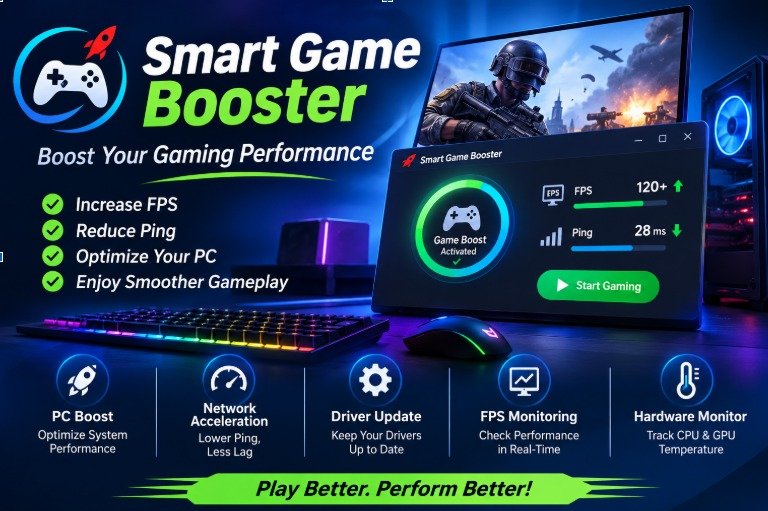
A smooth online gaming experience depends on more than just having a powerful PC.High ping, sudden lag, low FPS, and unstable internet connections can affect gameplay and make online matches frustrating. These problems are especially common in competitive games where every second matters.
Fortunately, gaming optimization tools can help improve your PC’s performance and network stability. One such tool is Smart Game Booster, a Windows application designed to optimize gaming performance, reduce network latency, and provide a smoother gaming experience.
In this article, we will explore its main features, benefits, and how gamers can use it to improve their gaming experience.
What Is Smart Game Booster?
Smart Game Booster is a gaming optimization tool developed for Windows users. It combines several useful features, including PC optimization, network acceleration, driver updates, FPS monitoring, and GPU optimization.
Its main purpose is to help gamers get better performance from their existing computers without immediately investing in expensive hardware upgrades.
Whether you enjoy competitive multiplayer games or casual gaming, Smart Game Booster provides tools to help optimize your system and improve gameplay.
Key Features of Smart Game Booster
1. Improve FPS and Gaming Performance
Low FPS can make games feel slow and unresponsive. Smart Game Booster includes PC Boost and GPU optimization features designed to improve system performance.
Its PC Boost functionality helps manage unnecessary background applications and services, allowing your computer to focus more resources on running games.
This can be particularly useful for gamers who want to make better use of their existing hardware.
2. Reduce Ping and Network Lag
High ping is one of the most frustrating problems for online gamers. It can cause delayed responses, interrupted gameplay, and difficulty competing against other players.
Smart Game Booster offers network acceleration technology designed to optimize gaming connections through dedicated routes and acceleration servers.
If you frequently experience high latency while playing online games, its Ping Reducer feature is worth exploring. It aims to reduce ping and packet loss for supported games, helping players enjoy more stable online sessions.
3. Access Global Gaming Servers
Connecting to distant game servers can sometimes result in high latency and unstable connections.
Smart Game Booster provides access to global gaming acceleration servers, allowing users to explore alternative network routes for supported games.
This feature can be helpful for players who enjoy international multiplayer games or regularly connect with friends in different regions.
4. Update Outdated Drivers
Outdated graphics and audio drivers can sometimes cause compatibility problems and affect gaming performance.
Smart Game Booster includes driver update functionality that helps identify outdated drivers and update them when needed.
Keeping your drivers updated can improve system stability and help your computer work better with modern games.
5. Monitor FPS and Hardware Performance
Understanding your computer’s performance is important when troubleshooting gaming issues.
Smart Game Booster provides hardware monitoring features that allow users to check CPU, GPU, RAM, disk usage, and hardware temperatures.
It also offers an in-game FPS display, making it easier to monitor performance while playing.
How to Use Smart Game Booster
Getting started with Smart Game Booster is simple. Follow these steps to optimize your gaming experience:
Step 1: Download and Install
Visit the official website and download Smart Game Booster for your Windows computer. Follow the installation instructions to complete the setup.
Step 2: Select Your Game
Open the software and choose the game you want to optimize. You can select a supported game from the available list.
Step 3: Optimize Your PC
Use the PC Boost feature to manage unnecessary background processes and optimize available system resources.
Step 4: Enable Network Acceleration
For supported online games, enable network acceleration and select a suitable server or recommended route to improve connection stability.
Step 5: Start Gaming
Launch your game and monitor FPS and ping to check whether the optimization has improved your experience.
Who Can Benefit from Smart Game Booster?
Smart Game Booster can be useful for different types of gamers:
- Competitive Gamers: Players who need stable connections and responsive gameplay.
- Low-End PC Users: Gamers looking to optimize available system resources.
- Online Multiplayer Players: Users who experience high ping or connection instability.
- Casual Gamers: People who want an easier way to manage PC gaming performance.
However, actual improvements depend on hardware specifications, internet quality, and game server locations.
Frequently Asked Questions
Can Smart Game Booster reduce ping?
Yes, its network acceleration feature is designed to optimize connections and help reduce latency and packet loss for supported games.
Does Smart Game Booster improve FPS?
It offers PC and GPU optimization features designed to improve gaming performance. Results depend on your computer’s hardware and configuration.
Is Smart Game Booster suitable for low-end PCs?
Yes, its PC optimization features can help manage system resources, although they cannot replace hardware upgrades when a computer does not meet a game’s requirements.
Final Thoughts
High ping, low FPS, and system slowdowns can make online gaming less enjoyable. Smart Game Booster combines PC optimization, network acceleration, driver updates, and hardware monitoring in one application.
For gamers who want to improve their existing PC setup and enjoy a smoother gaming experience, Smart Game Booster is worth considering. Its combination of gaming and network optimization tools makes it a useful option for players looking to get more from their computers.

Smart Student Recruitment Strategies for Colleges and Universities in a Competitive Education Market

Smart Game Booster Review: How to Improve FPS and Reduce Ping for Better Gaming

The 3 Carat Diamond, Explained: What the Weight Means, What It Costs and How to Buy One Well

Why is the Demand for Farm Equipment Loans Rising in Modern Agriculture

Beyond the Surgery: Understanding the Full Cost of Scoliosis Surgery in India

How to Maintain Your PC for Better Everyday Performance and Gaming

The Growing Role of SEBI CSCRF in Financial Data Protection

How Employer Of Record Services Help Startups Expand Into New Markets With Lower Operational Risk

What Most Homeowners Miss When Planning a Roof Replacement in Sacramento

Smarter Lawn Feeding and Seeding: How You Get Better Results With the Right Spreader

Buying Property Through Your Super? Run an SMSF Loan Calculator Before You Call a Broker

How to Make Kofta Kebabs at Home Without Overthinking It

Press Release Distribution for Startups: A Practical Guide to Your First Announcement

NF Net Worth: How the Rapper Turned Pain Into Millions

Michele Morrone Net Worth: His Salary, Earnings, and Rich Life

Naomi Burton-Crews: The Heartwarming Story of Terry Crews’ Eldest Child

How Interactive Step-by-Step Guides Make Tech Easier to Learn

Innovations in Floristry: BOPP Matte Film as the Go-To Material for Modern Flower Packaging

Inside the Obsession With Chrome Hearts and CDG

Hi3D: Accelerating Creative Prototyping with AI-Powered 3D Design
Smart Student Recruitment Strategies for Colleges and Universities in a Competitive Education Market
Smart Game Booster Review: How to Improve FPS and Reduce Ping for Better Gaming
The 3 Carat Diamond, Explained: What the Weight Means, What It Costs and How to Buy One Well
Why is the Demand for Farm Equipment Loans Rising in Modern Agriculture
Beyond the Surgery: Understanding the Full Cost of Scoliosis Surgery in India
How to Maintain Your PC for Better Everyday Performance and Gaming
The Growing Role of SEBI CSCRF in Financial Data Protection
How Employer Of Record Services Help Startups Expand Into New Markets With Lower Operational Risk
What Most Homeowners Miss When Planning a Roof Replacement in Sacramento
Smarter Lawn Feeding and Seeding: How You Get Better Results With the Right Spreader
-

 News2 months ago
Who Is Gigi Yallouz? Meet Owain Yeoman’s Wife and Jewelry Designer
-

 News2 months ago
Who Is Tove Torvalds? All About Linus Torvalds’ Wife
-

 News2 months ago
Rajesh Nihalani: What We Know About Archie Panjabi’s Husband
-

 News3 months ago
Stephan Farmiga: Everything to Know About Vera Farmiga’s Brother